

Camera Troubleshooting Guide
Cannot receive sound waves during the network configuration
- Confirm whether you hear the prompt that the sound wave is received and whether the camera status light is flashing green.
- Confirm whether the "Set" button is pressed after powering on.
- Confirm whether the WiFi information is correct (the WiFi is 2.4G, the name and password are correct, the WiFi can be connected to the Internet, and there are no preventive functions for WiFi squatting and others).
- If the sound wave is still not received, press the "Set" button and send the sound wave several times.
- Power off and restart the router and the camera and then repeat Step 3.
- Please connect to a 2.4G mobile hotspot and try again.
- If it still fails to configure the network, please contact our staff by submitting your feedback on the app or via the official email zh-service@360.cn.
Cannot bind the camera?
- Does the light flash green after powering on? Is there a "beep" sound when long pressing the Settings button?
- Check if the WiFi account and password are correct.
- If there are special characters in the WiFi name or password, it is recommended to change it to simple English and numbers.
- Check if WiFi squatting is configured for the router.
- We recommend you use another WiFi or connect to the mobile hotspot for network configuration.
- Please restart the router and reconnect the device to the network.
- Configure the network via sound wave. Please keep your phone closer to the camera for better reception. Turn up the phone volume and keep the surrounding environment as quiet as possible for the camera to "hear" the sound wave.
- Try AP network configuration in the upper right corner of the page to see if it works.
- If it still fails to configure the network, please click "Upload Log" on the page to upload the device log. You can also contact our staff by submitting your feedback on the app or via the official email zh-service@360.cn.
The device cannot be used after a power failure during a firmware upgrade
Please do not power off the camera during a firmware upgrade. If the device cannot be used after an unexpected power failure during a firmware upgrade, please perform a firmware recovery with a memory card.
To recover the firmware:
- Place the TF card into the card reader and check its file system (Currently, it only supports TF cards with the format of FAT32).
- Copy the firmware package that needs to be upgraded to the root directory of the TF card.
- Take out the TF card from the card reader and put it into the slot of the camera.
- Please cut off the power of the camera first.
- Long press the configuration hole with the pin, then power on the camera, and wait for 10 seconds to release the pin.
- Wait for about 1 minute, and the light in constant blue or flashing green indicates a successful upgrade.
Reminder: During the manual upgrade process, please do not power off the device.
Cannot playback memory card recordings?
1. If the app prompts "Memory card is not detected":
- Please check if the memory card is inserted.
- Reinsert the memory card to see if it can be detected.
- Connect the memory card to the card reader to the computer to see if the videos in the memory card can be played. If you can view the videos on the computer, make a backup of the videos (important files first) and format the memory card. Then please insert it again to see if it can be used.
- You can also try another card (make sure the TF card format is FAT32, and replug the power cord of the camera beforehand).
2. If the app prompts a timeout or network error:
Please switch the mobile network and try again.
3. If the device is offline:
The recording playback cannot be viewed. Please reconfigure the network.













Share:
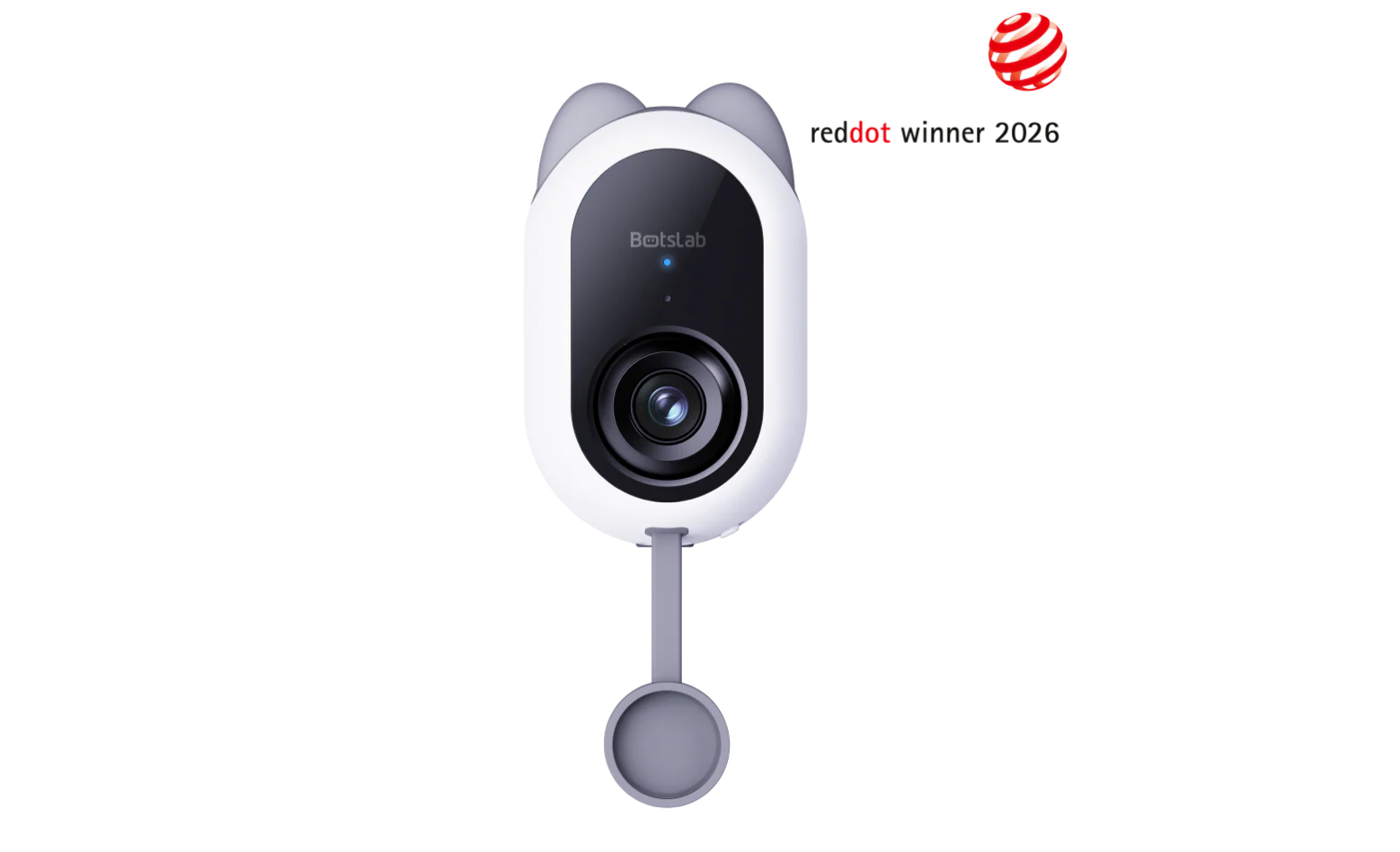
Botslab Indoor Camera C224: AI Alarm Feedback, Network Setup & Firmware Recovery
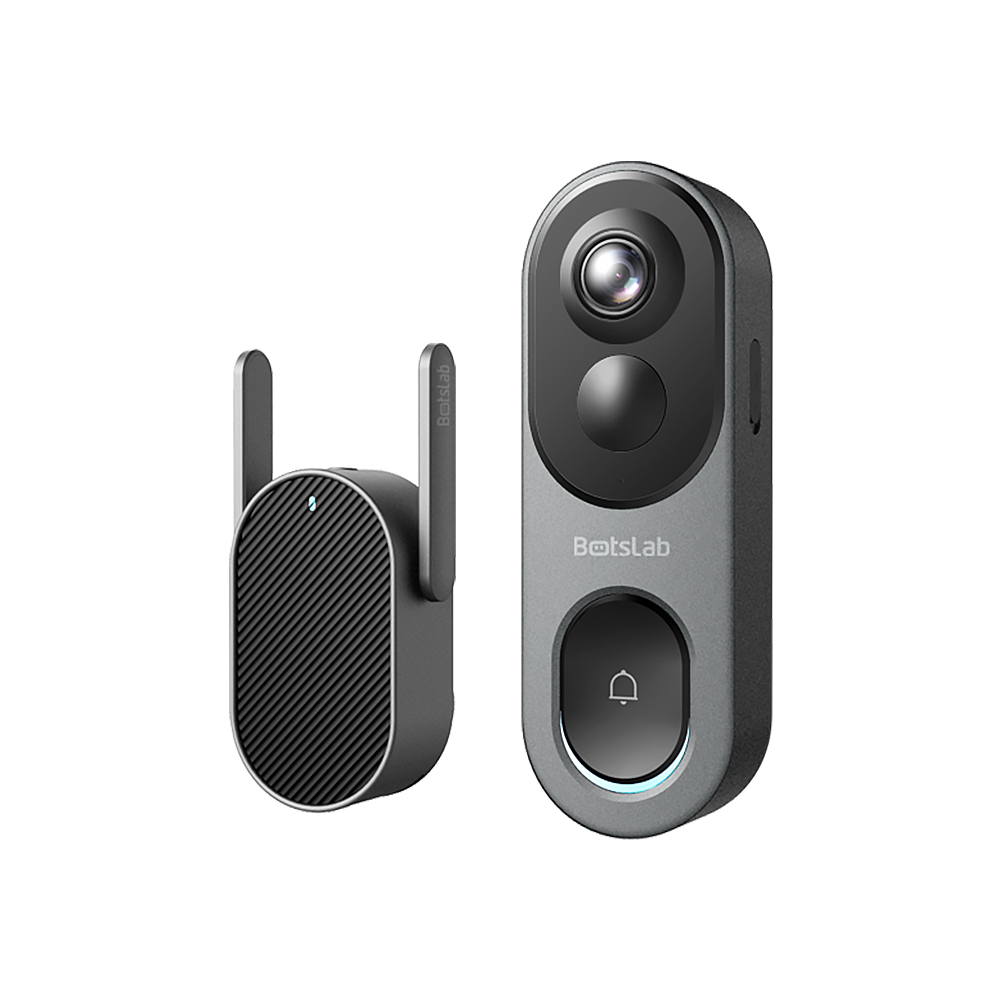
Botslab Video Doorbell R811: Notification Setup, Networking Options & Recording Guide