




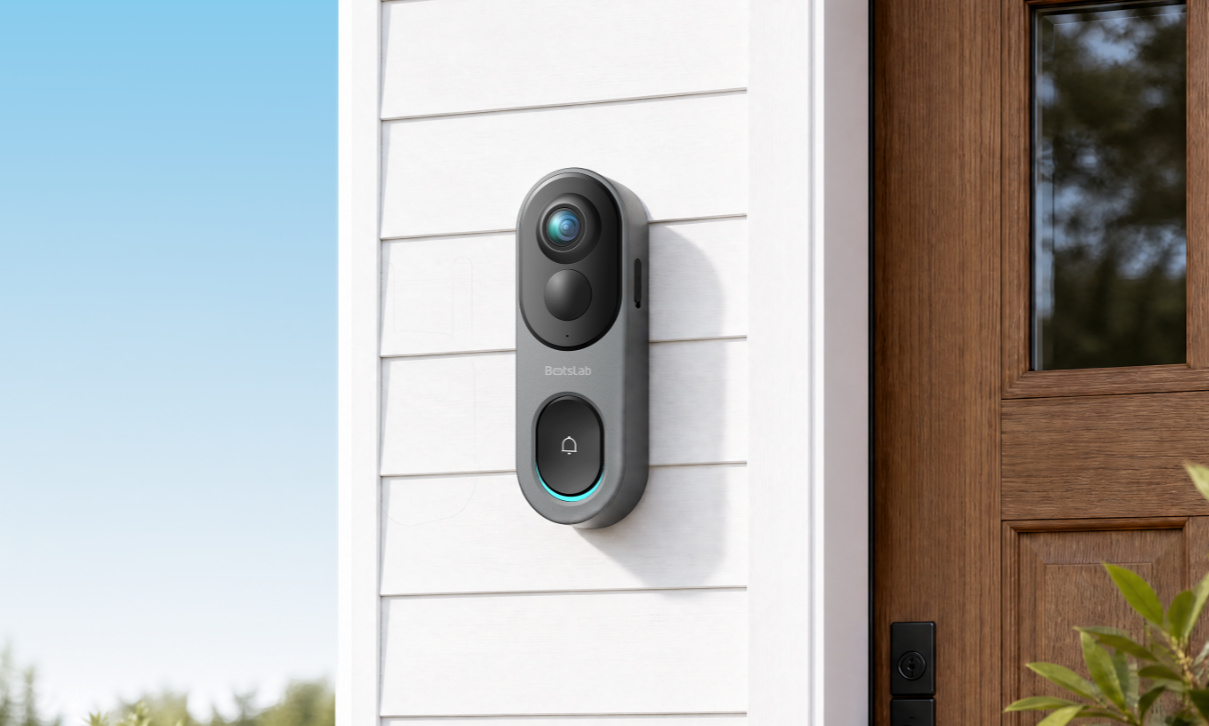
What Should I Do If the Doorbell Clarity Is Poor?
Before using the doorbell, it is recommended to check whether the lens film has been removed.
The doorbell offers ultra-clear, high-definition video with smooth resolution.
Please adjust the clarity in the app.
What Should I Do If Day or Night Vision Is Not Clear?
The clarity can be adjusted on the App side.
If you adjust to Ultra HD and still find it unclear, please provide the relevant videos for check.
What Should I Do If the Device Can't Switch to Night Vision or the Picture Is Black and White During the Day?
Please adjust the night vision mode to Auto switch: Doorbell Settings → Image, Night Vision and Sounds → Picture and Night Vision → Auto Switch
Upgrade to the latest firmware version.
If the screen is still black and white, you can adjust the night vision settings to Always Off during the day to check if it can be restored to a colorful view.
How to Experience VR Effects? What Should I Do If the Video Distortion Is Too Large?
You can click the "View Correction" button on the Real-time Screen, Cloud Recording, Card Recording, Dynamic Details page to experience the VR effect. After entering VR mode, slide the video screen up, down, left, or right to adjust the viewing angle.
To experience the VR effect, you can also click the View Correction button on the pages for Live View, Cloud Recording, Local Recording, and Events. Once in VR mode, adjust the viewing angle by swiping in different directions on the video display.
In addition to VR effects, we provide vertical and horizontal correction for viewing the wrapping area below the door and the left and right areas of the door, helping reduce distortion and improve visibility.
Here's the link for video guide: Watch Tutorial






Share:
FAQS for W510