




How Does the Visitor Identity Recognition Feature Work?
The visitor identity recognition feature is designed to capture images of visitors and make it easier for you to identify and categorize them. Below is an overview of how it works:
1. Capturing Front-Facing Images of Visitors
When a visitor approaches your doorbell, the system captures a clear front-facing image of them. This image serves as the basis for recognition and identification.
2. Automatic Grouping of Visitor Images
Once the image is captured, the app automatically groups these images. The system organizes visitors' images based on features such as face recognition or other attributes, ensuring that you can easily view and manage them in the app.
3. Annotating and Categorizing for Easy Identification
You can then annotate and categorize these images in the app. This allows you to easily identify visitors, whether it’s for security purposes, regular visitors, or special occasions. You can label them with names, events, or any other custom categories to keep your records organized.
4. Key Benefits
- Efficient Identification: Quickly identify visitors with categorized images.
- Improved Security: Monitor and track visitor activity with easily annotated records.
- Customizable Labels: Add custom labels for easier management and personalized records.
This feature offers a powerful way to track and identify visitors, enhancing both convenience and security for your home or business.
How Can I Enable the Facial Recognition Feature?
Facial recognition is a powerful feature that is automatically enabled by default. Here’s a breakdown of how it works and when it activates:
1. Facial Recognition Is Enabled by Default
By default, the facial recognition feature is already enabled. There’s no need to manually turn it on. The system is designed to automatically start recognizing faces as soon as a clear front-facing image of a person is captured.
2. How the Feature Activates
The facial recognition feature activates when the doorbell captures a clear, front-facing image of a person within its field of view. The system uses advanced algorithms to detect and process the face in real-time, adding it to the recognition database for future identification.
3. No Manual Configuration Required
You don’t need to configure or activate the feature manually. Once the system detects a person within range, it will automatically begin processing and storing facial data for identification purposes.
4. Troubleshooting Facial Recognition
If you find that the facial recognition feature is not working as expected, check the following:
- Ensure that the camera has a clear view of the person's face.
- Make sure that the lighting conditions are sufficient for accurate face detection.
- If the camera is too far from the person, the recognition may not trigger properly.
If issues persist after ensuring optimal conditions, please contact customer support for assistance.
How Do I Remove My Smart Doorbell for Charging?
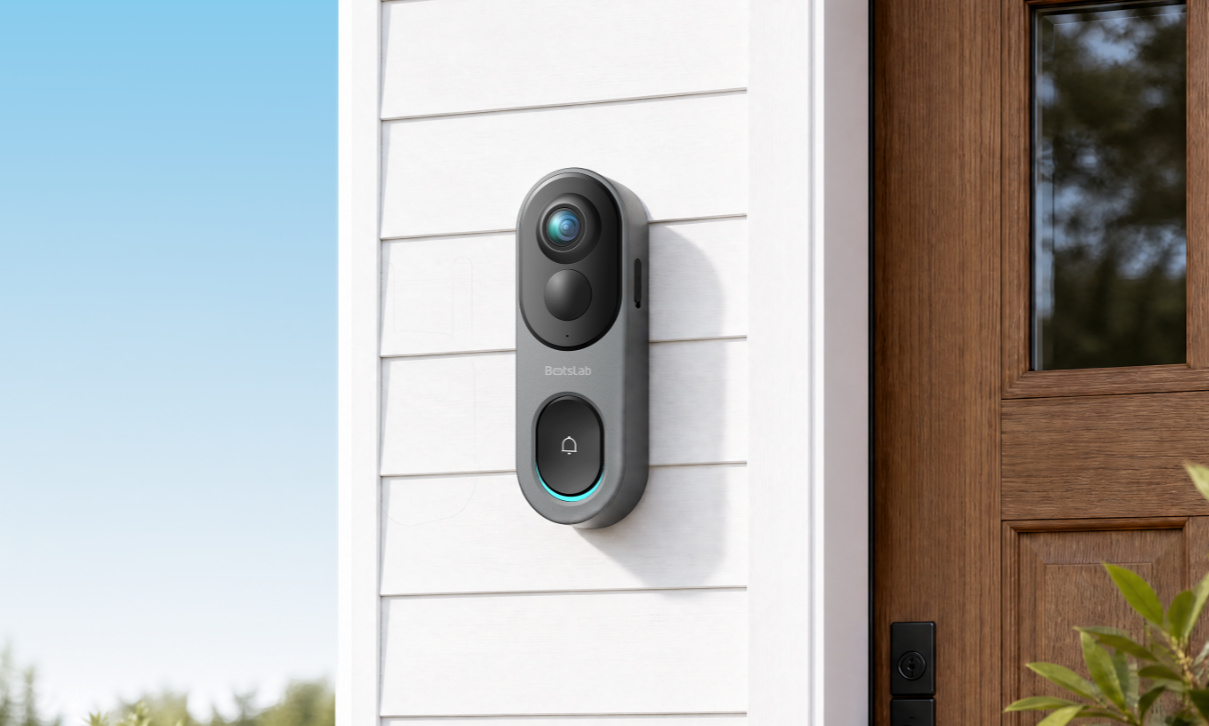
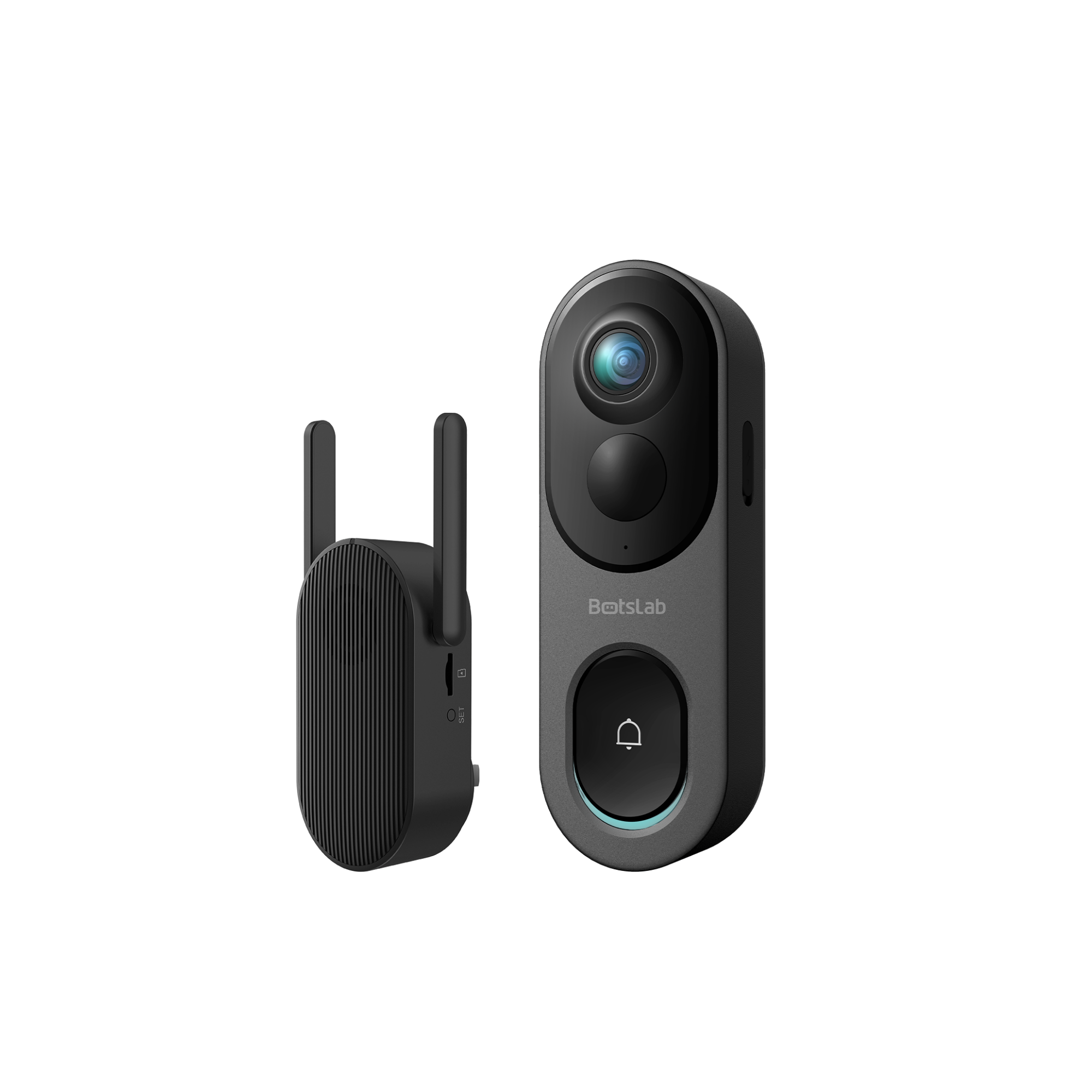
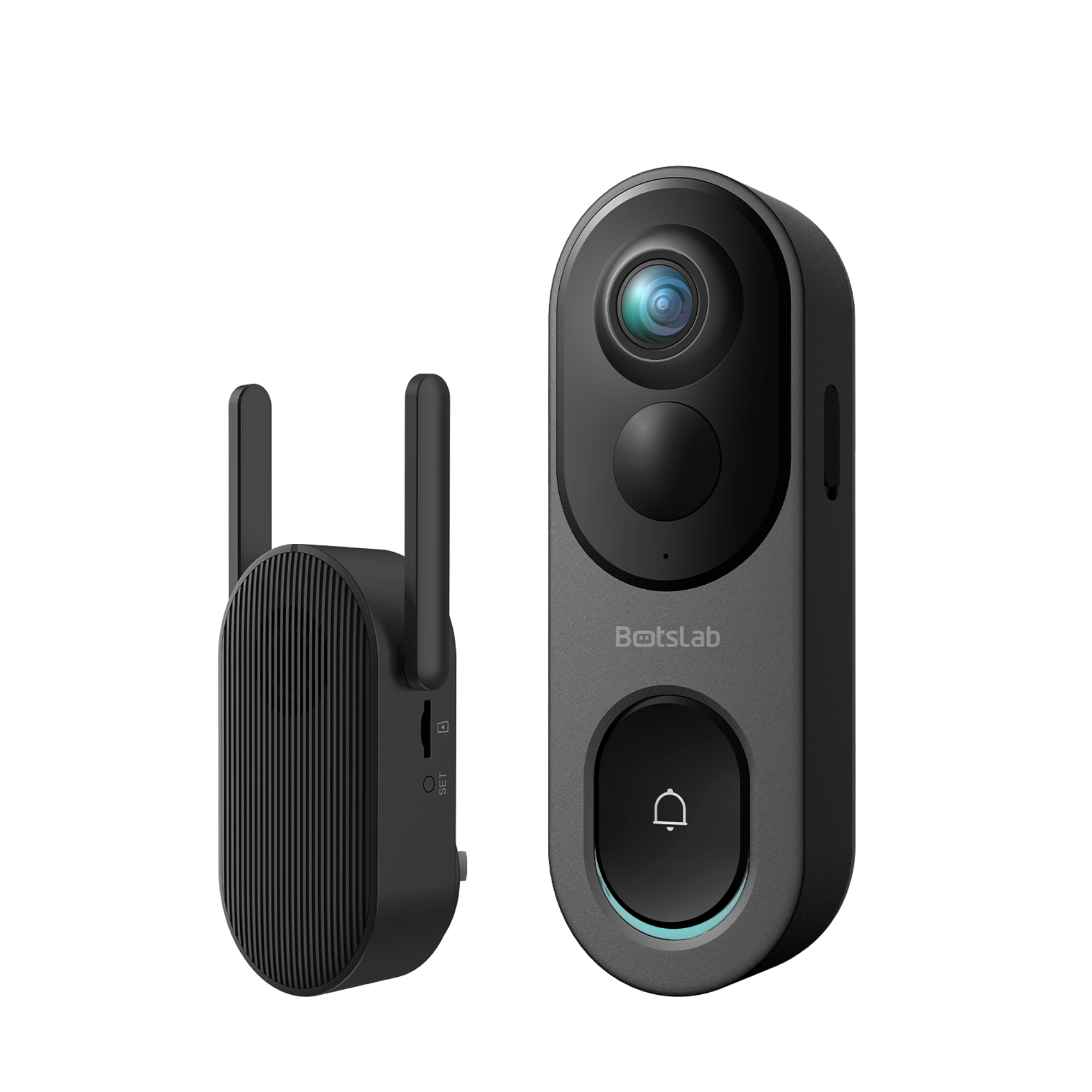
The R811s smart doorbell is equipped with a built-in 6400mAh battery. To ensure the doorbell remains functional, follow these simple steps when the battery needs charging.
1. Receive Notification When Battery is Low
When the battery level drops below 15%, the app will automatically notify you to charge the doorbell. You can also check the battery level in the app’s settings to monitor its status.
2. Disable the Anti-theft Alarm
Before removing the doorbell for charging, make sure to disable the anti-theft alarm to avoid triggering it during the process.
3. Detach the Doorbell for Charging
To remove the doorbell from its mount, follow these steps:
- Use a pin to press into the small hole located at the bottom of the doorbell.
- Push the pin in until you feel resistance, then lift the doorbell upwards to detach it from the mount.
4. Charging the Doorbell
Once detached, you can charge the doorbell by connecting it to a charger. Alternatively, you can connect the doorbell to a low-voltage power supply for continuous power without removing it.
Remember to regularly check the battery level in the app to ensure your doorbell is always ready to use. If you prefer continuous power, using a low-voltage power supply is a convenient option.
Does the Camera Have to Be Connected to the Internet for Recording?
The answer depends on the type of recording and the camera's features. Below is an explanation of how the camera works in different scenarios:
1. Cloud Service Requires an Internet Connection
Cloud storage and remote viewing features are enabled when your doorbell is connected to the internet. This allows the footage to be uploaded to the cloud for later access and review.
2. Local Recording Without Internet
If the camera is not connected to the internet, it can still record locally. However, you will not be able to access these recordings remotely through the app until the doorbell is connected to the internet again.
3. Benefits of an Internet Connection
- Cloud Storage: Save your recordings securely online for easy access anytime.
- Remote Viewing: Watch live or recorded footage from anywhere via the app.
- Real-time Alerts: Receive instant notifications about events happening at your door.
For the best experience and full functionality, it is recommended to keep your doorbell connected to the internet. This ensures seamless recording, access to cloud services, and real-time notifications.







Share:
Botslab Indoor Camera C224: AP Connection & Technical Support Guide
Botslab Indoor Camera C211: Event Recording, Auto-Reconnection & Night Vision Guide