




What should I do if network connection fails?
⚡ Quick Reset
Before deep troubleshooting, please restart your router and replug the camera's power supply, then try connecting again.
If the connection still fails, please follow these 4 essential checks:
1. Proximity Check: Keep your phone, camera, and router in the same room (less than 2 meters apart) during the setup process.
2. Network Environment:
- Verify the Wi-Fi password is correct.
- Disable router "Anti-Wi-Fi squatter" functions (MAC filtering/Whitelists).
- Note: The camera does not support networks requiring web authentication.
3. Sound Wave Setup: Turn up your phone's volume to maximum and hold it close to the camera's microphone.
4. Alternative Method: If sound wave connection fails multiple times, try the AP Hotspot method as shown below.
Alternative Connection Guide (AP Method)
Step 1: Power & Reset

Step 2: Connect to Device Hotspot

Step 3: Device Bound Successfully

Still having trouble? We are here to help.
Contact SupportWhat Should I Do If I Can't Receive Message Notifications?
If you are unable to receive message notifications, please check the following settings to ensure everything is properly configured.
Check Device Settings
Make sure all notification-related features are enabled in the device settings.
- Human Detection: Ensure it is enabled in Device > Settings.
- AI Lab Settings: Go to Device > Settings > Skills in Use > Skill Settings, make sure the AI Lab switch is turned on and the feature is within its valid period.
- Notifications: Enable notifications for all events in Device > Settings > Notifications.
Check Phone Permissions
- Verify that system notification permissions are enabled for the app.
- Ensure the app is allowed to run in the background.
- For some Android devices (such as Huawei), make sure floating window permissions are enabled.
What Are the Shared Permissions?
The system provides three levels of shared permissions, allowing different levels of access and control for users.
Permission Levels
Each permission level determines what the shared user can view and control.
- Primary Level: The user can only view live images. They cannot access cloud recordings or modify any camera settings.
- Medium Level: The user can view live images, cloud record videos, and memory card recordings. However, they cannot modify camera settings.
- Advanced Level: The user has full access to live images, cloud and card recordings, and can operate most camera settings, except for unbinding the device.
Summary
Higher permission levels provide more access to recordings and device controls, while lower levels are limited to basic viewing only.







Share:
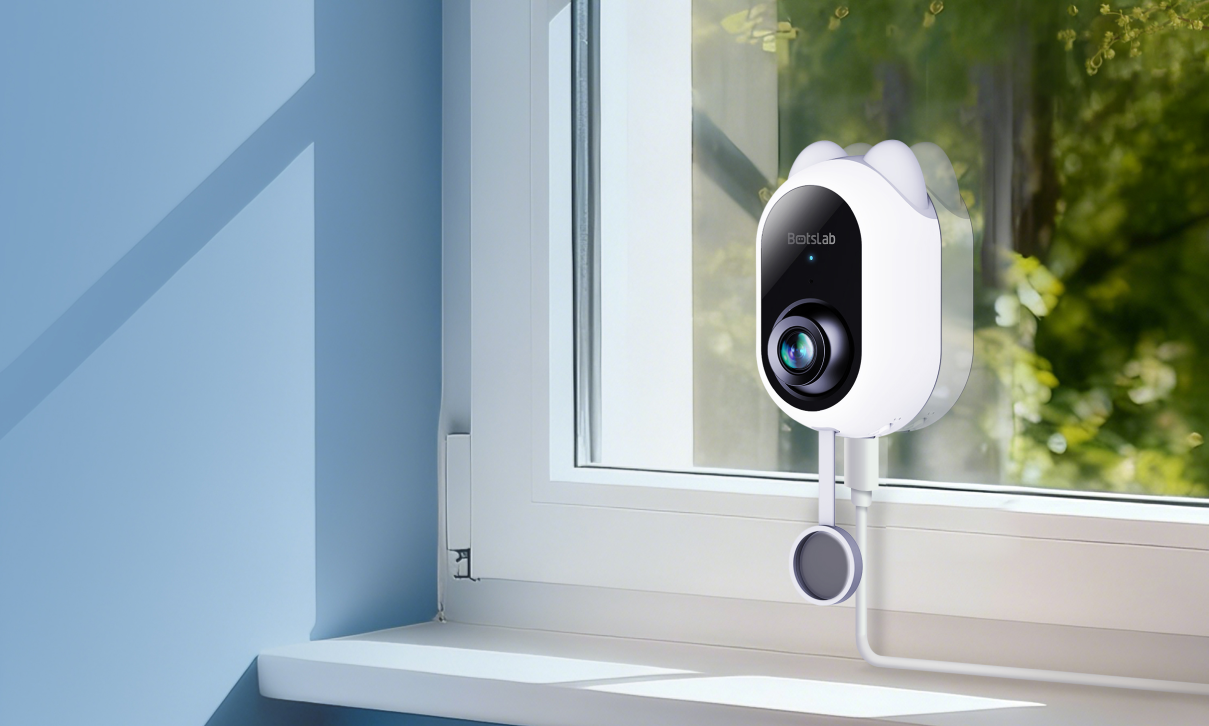
Botslab Indoor Camera C224: AI Alarm Feedback, Network Setup & Firmware Recovery
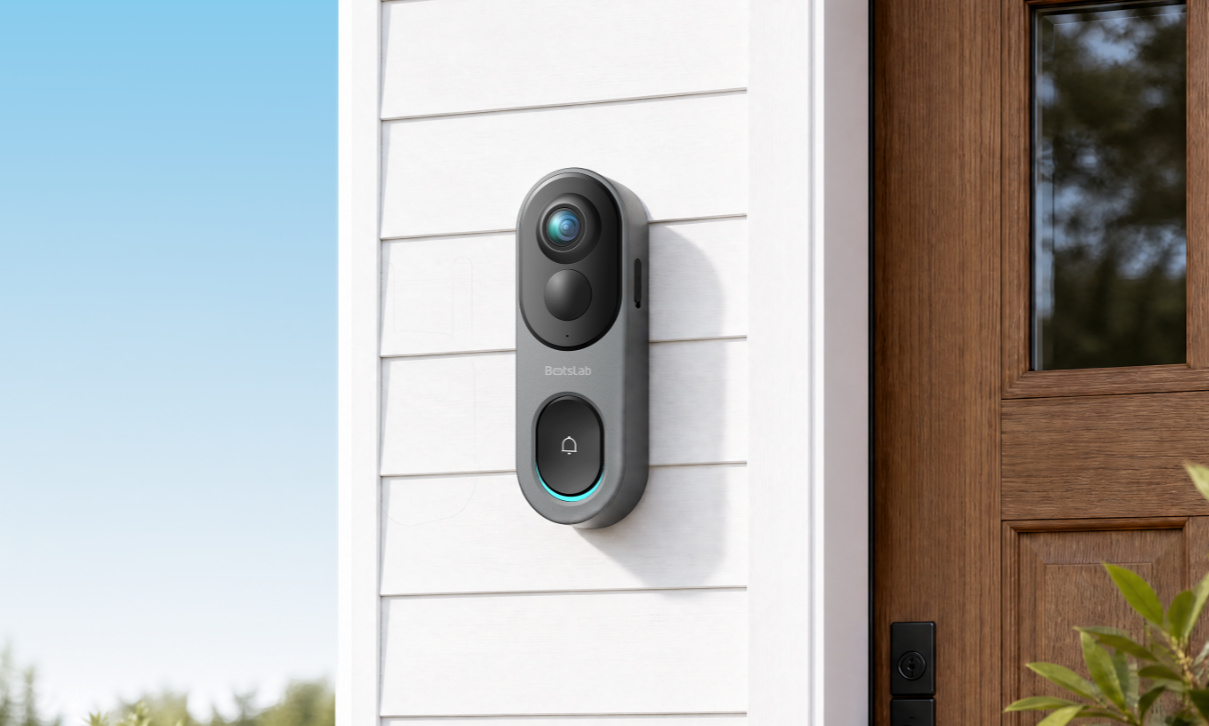
Botslab Video Doorbell R811: Notification Setup, Networking Options & Recording Guide