

What Should I Do If the Dashcam Experiences Abnormal Startup, Freezing, or Reboot Issues?
1. Ensure Proper Power Supply
Make sure you are using the original USB cable and car charger. You can also use a portable power bank and USB cable to temporarily power the dashcam to rule out device or accessory malfunctions.
2. Consider Vehicle Battery Issues
In older vehicles or if the battery has not been replaced for more than two years, starting the engine may cause the dashcam to reboot once. After the engine starts and the battery stabilizes, the dashcam should function normally. This is considered normal behavior.
3. Check for Memory Card Issues
An abnormal memory card can cause startup issues. Try powering on the dashcam without the memory card inserted to determine if the card is the problem. If the dashcam starts without the memory card, format the card on a computer or replace it with a new one.
Important: Inserting or removing the memory card while the dashcam is powered on can cause it to reboot or shut down. Avoid this practice.
A damaged or low-speed memory card can cause the dashcam to reboot frequently or freeze. Ensure the card meets the necessary speed standards.
4. Restart the Dashcam
If the dashcam freezes, disconnect the USB power cable, wait for about ten seconds, and then reconnect it to restart the device. If this doesn't resolve the issue, try holding the power button for eight seconds to force a restart and restore factory settings.
5. Accept Firmware Updates
The mobile app will periodically receive firmware updates. Accepting these updates is recommended as they optimize dashcam functionality and fix known bugs. Ensure a stable power supply during the update and avoid any operations like pressing buttons, removing the memory card, or disconnecting external power. Improper actions during firmware updates can damage the dashcam firmware, making it unable to start properly.
What Should I Do If the GPS Has No Signal or a Weak Signal?
1. Power Supply Insufficient
Please use the original car charger to ensure adequate power supply.
2. Signal Blockage
The metal content in the windshield film may affect the GPS signal. You can remove the dashcam and take it outside the car to check the GPS signal.
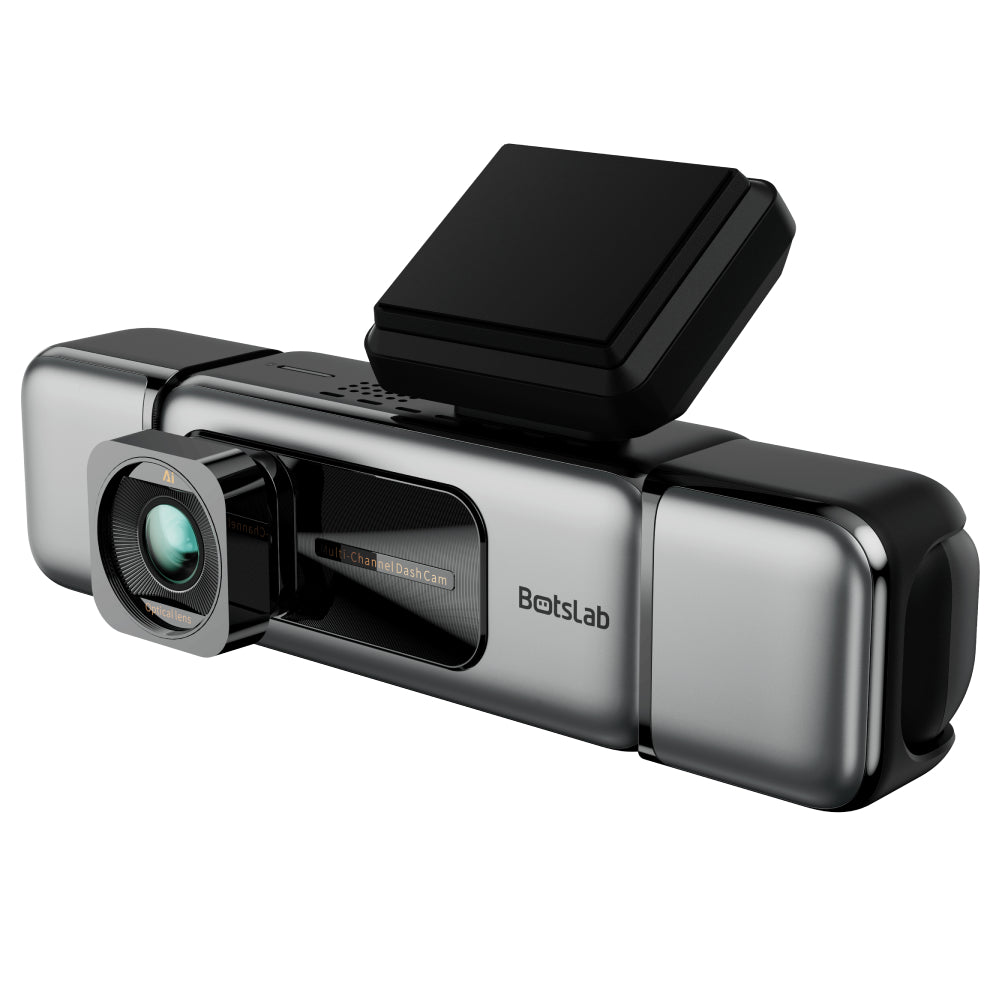
Note: The mount has a detachable backplate. Push the mount upwards to remove the dashcam.
3. Signal Interference
Check if there are other electronic devices in the car that might be interfering with the GPS signal. If they are very close to the dashcam, they might cause interference. Try turning off other devices, restarting the dashcam, or taking the dashcam outside the car to restart it.
What Should I Do If the Video Is Unclear?
1. Download the Original Video
Please download the original video, as the real-time view on the mobile app is not at the highest resolution. Videos downloaded via the app may be compressed when shared through messaging tools, resulting in a loss of quality.
2. Ensure the Lens and Windshield Are Clean
Use a lens cleaning cloth to remove any dirt or smudges from the dashcam lens and the windshield. A clean lens and windshield are essential for optimal video quality.
3. Address Engine Vibrations
In older vehicles, severe engine vibrations can cause the dashcam and windshield to shake, affecting video recording. The vibrations from the engine are transferred to the dashcam, resulting in shaky footage.
4. Mount the Rear Camera on the Rear Windshield
It is recommended to mount the rear camera on the rear windshield. Avoid placing the heating wires in the center of the lens. Poor light transmission through window film and a rear windshield that hasn’t been cleaned for a long time can also impact recording quality.






Share:
Botslab Outdoor Camera W314: SIM Data, Network Setup & Troubleshooting Guide